Remora-ai


Introducing Remora: Building a Real-Time Market Risk Engine | Tech Deep Dive


Introducing Remora: Building a Real-Time Market Risk Engine

I’ve recently launched a new project: Remora. It’s a service for algorithmic traders that adds a layer of market awareness I felt was missing from tools like Freqtrade – helping strategies actually understand the current market and make smarter trading decisions.

When building and backtesting crypto strategies, I noticed that even the “good” ones would get wrecked by just a few bad trades during wild market swings. Remora is my attempt to fix that: it gives trading bots real-time context so they can avoid high-risk conditions and focus on opportunities that actually make sense.

TL;DR: I built Remora, a production-ready market risk microservice using FastAPI, ClickHouse, and modern MLOps practices. It analyzes dozens of real-time market conditions and returns a simple safe_to_trade signal that can filter out 30-60% of losing trades. The system is now live, handling real-time requests with sub-100ms response times, and includes a complete observability stack with Prometheus and Grafana.

The Problem: Trading Bots Need Market Context

The Challenge

When building algorithmic trading strategies, I noticed a consistent pattern:

  • Good strategies were failing not because of bad logic, but because they traded during terrible market conditions
  • 30-60% of losing trades happened during extreme fear, volatility spikes, choppy markets, or bearish news events
  • Strategies had no awareness of current market regime, volatility levels, or external risk factors
  • Single bad entries during panic conditions could wipe out weeks of gains

Traditional trading bots focus on technical indicators (RSI, MACD, moving averages) but completely ignore:

  • Market regime (bull, bear, choppy, panic)
  • Volatility levels (normal vs extreme)
  • External sentiment (Fear & Greed Index, news sentiment)
  • Macro indicators (VIX, DXY, funding rates)
  • Event flags (extreme fear, panic, bear market signals)
Problem: Trading bots were executing trades during conditions that any experienced trader would avoid. They needed a layer of market awareness to filter out high-risk entries.

What Is Remora?

Remora is a real-time market risk microservice that provides trading bots with market context. It analyzes dozens of market conditions in real-time and returns a simple boolean: safe_to_trade.

Core Features

  • Market Regime Detection: Classifies market conditions (bull, bear, choppy, high_vol, panic, sideways)
  • Volatility Scoring: Calculates and classifies volatility (low, normal, high, extreme) using ATR%, Bollinger width, and returns stddev
  • Composite Risk Score: Weighted risk assessment (0-1) from multiple factors
  • Safe-to-Trade Flag: Boolean signal indicating whether conditions are favorable
  • REST API: Real-time API endpoints for live trading integration
  • Multi-Exchange Support: Works with Kraken, Binance, and other CCXT-compatible exchanges
  • Observability Stack: Prometheus metrics and Grafana dashboards

What Remora Monitors

Remora continuously tracks:

  • Technical Indicators: SMA50/200, ADX, ATR%, RSI, Bollinger Bands
  • Market Regime: Trend classification, momentum, trend strength
  • External Data: Fear & Greed Index, CryptoPanic news sentiment, VIX, DXY
  • On-Chain Metrics: BTC dominance, funding rates, liquidation data
  • Event Flags: Extreme fear, panic, bear market, high volatility signals

Example API Response

Listing 1: Remora risk assessment API response

{
  "safe_to_trade": false,
  "risk_score": 0.77,
  "risk_class": "very_high",
  "regime": "choppy",
  "volatility": 0.047,
  "volatility_classification": "low",
  "risk_confidence": 0.73,
  "trend_classification": "sideways",
  "momentum_classification": "neutral",
  "reasoning": [
    "Extreme Fear (F&G=15) - blocking trades",
    "Trading disabled due to global risk conditions"
  ],
  "blocked_by": ["flag_extreme_fear"],
  "risk_breakdown": {
    "volatility": 0.017,
    "regime": 0.24,
    "trend_strength": 0.1,
    "momentum": 0.066,
    "external": 0.35
  },
  "event_flags": {
    "flag_extreme_fear": true,
    "flag_high_volatility": false,
    "flag_downtrend": false,
    "flag_panic": false
  },
  "recommendation": "no_entry",
  "fear_greed_index": 15,
  "btc_dominance": 56.37,
  "funding_rate": 0.000069,
  "vix": 20.52,
  "dxy": 122.24
}
Key Insight: Remora doesn’t just say yes or no. It returns complete transparency: risk scoring, regime classification, volatility levels, event flags, and human-readable reasoning – so you always know why a trade was blocked.

Tech Stack: FastAPI, ClickHouse, and Modern MLOps

Remora is built with a modern, production-ready tech stack designed for real-time performance and scalability:

Backend & API

  • FastAPI: Modern Python web framework with async support, automatic OpenAPI docs, and excellent performance
  • Python 3.11+: Type hints, async/await, modern language features
  • Pydantic: Data validation and settings management
  • CCXT: Unified cryptocurrency exchange API for multi-exchange support
  • APScheduler: Background task scheduling for data updates

Data Storage & Analytics

  • ClickHouse: Columnar database for time-series data, historical risk metrics, and analytics
  • Materialised Views: Pre-aggregated risk data for fast queries (learned from my ClickHouse MLOps work)
  • CSV Output: File-based output for backtesting compatibility with Freqtrade

Observability & Monitoring

  • Prometheus: Metrics collection and time-series storage
  • Grafana: Real-time dashboards for risk metrics, API performance, and system health
  • Custom Metrics: Risk scores, regime classifications, API latency, data freshness

Infrastructure

  • Docker & Docker Compose: Containerized deployment with observability stack included
  • Uvicorn: ASGI server for FastAPI
  • Environment Variables: Configuration management for different environments

External Data Sources

  • Exchange APIs: Kraken, Binance via CCXT
  • Alternative.me: Fear & Greed Index
  • CryptoPanic: News sentiment analysis
  • Yahoo Finance: VIX, DXY macro indicators
  • Coinglass: Funding rates, liquidation data

Why This Stack? FastAPI provides excellent async performance and automatic API documentation. ClickHouse handles billions of time-series records efficiently. Prometheus/Grafana give real-time visibility into system health. Docker makes deployment trivial. Together, they form a production-ready microservice architecture.

System Architecture

Remora follows a microservice architecture with clear separation of concerns. External data sources feed into background data fetchers, which populate the risk calculation engine. The FastAPI layer serves real-time risk assessments to trading bots via REST API endpoints.

Component Breakdown

Listing 2: Remora service structure

remora_service/
├── app/
│   ├── main.py              # FastAPI application
│   ├── config.py            # Configuration management
│   ├── models.py            # Pydantic models
│   ├── scheduler.py         # Background scheduler
│   ├── metrics.py           # Prometheus metrics
│   ├── engine/              # Risk calculation engine
│   │   ├── risk_calculator.py
│   │   ├── regime_detector.py
│   │   └── volatility_scorer.py
│   ├── data/                # Data fetching and processing
│   │   ├── fetchers/
│   │   └── processors/
│   └── api/                 # API routes
│       └── v1/
│           ├── risk.py
│           ├── regime.py
│           └── volatility.py
├── examples/                # Integration examples
├── tests/                   # Test suite
├── grafana/                 # Grafana dashboards
├── prometheus/              # Prometheus configuration
├── Dockerfile
├── docker-compose.yml
└── requirements.txt

Data Flow

  1. Background Scheduler: Runs every minute (configurable) to fetch fresh market data
  2. Data Fetchers: Collect OHLCV data, external indicators (Fear & Greed, VIX, DXY), and news sentiment
  3. Risk Engine: Calculates technical indicators, classifies regime, scores volatility, computes composite risk
  4. Storage: Results stored in ClickHouse for historical analysis and CSV files for backtesting
  5. API Layer: FastAPI serves real-time risk assessments with sub-100ms response times
  6. Observability: Prometheus collects metrics, Grafana visualizes system health

Implementation Deep Dive

Risk Score Calculation

At the heart of Remora is a composite risk score that quantifies the current market environment. This score combines multiple factors, including volatility, trend strength, momentum, and broader market regimes, into a single 0-1 scale. The higher the score, the riskier the market conditions, helping algorithmic traders avoid potentially catastrophic trades.

Market Regime Classification

Remora continuously evaluates the market and classifies it into regimes such as bull, bear, choppy, or panic. These regimes provide context for trading strategies, so bots can adapt their behaviour dynamically rather than trading blindly. The engine looks at how trends, volatility, and momentum interact to determine the current regime.

Safe-to-Trade Decisions

Using the risk score and regime classification, Remora flags whether market conditions are currently safe for trading. This allows trading bots to pause or reduce exposure during high-risk periods, and resume normal operation when conditions are more favourable. The system also considers external market events to further refine its decisions.

Integration via API

Traders can access Remora’s insights in real time through a simple API. For example, a bot can query the risk engine for a trading pair, receive the current risk assessment, and make informed decisions programmatically.

This design keeps your strategies aware of the market context – the kind of awareness that human traders rely on instinctively, but which most algorithmic bots lack.

Observability and Monitoring

If you don’t already know: I love observability. So this was a good excuse to set up a comprehensive (maybe a little over the top) observability stack for Remora to monitor system health, API performance, and data quality in real-time and in great detail.

Monitoring Infrastructure

The monitoring setup includes:

  • Prometheus: Collects metrics on risk scores, regime classifications, API request rates, latency percentiles, and data freshness from external sources
  • Grafana: Real-time dashboards visualising risk metrics across all tracked pairs, regime distributions, API performance trends, and system health indicators
  • Custom Metrics: Track risk scores per trading pair, volatility classifications, external API error rates, and data age from each source

This observability stack helps ensure the service is performing correctly, data sources are fresh, and API responses are fast. It’s been essential for debugging issues and optimising performance during development and production use.

Results and Impact

Performance Metrics

Metric Value
API Response Time 50-100ms (p95)
Data Update Frequency Every 1 minute (configurable)
Uptime 99.9%+ (with fail-open design)
Concurrent Requests 1000+ req/s (async FastAPI)
Historical Data 619,776 records (2020-2025, 5-min granularity)

Backtesting Results

Backtests across 51,941 trades show:

  • 30-60% of losing trades occur during high-risk conditions that Remora flags
  • Improved win rates when Remora filtering is applied
  • Reduced drawdowns by avoiding entries during extreme volatility
  • Better risk-adjusted returns (Sharpe ratio improvements)

Real-World Usage

Remora is now:

  • Live in production at remora-ai.com
  • Integrated with Freqtrade strategies via REST API
  • Used by traders for both automated and manual trading decisions
  • Open source with Python client library available
Impact: Remora transforms trading bots from blind executors into context-aware systems. By filtering out high-risk entries, strategies can focus on favorable market conditions, leading to better risk-adjusted returns and reduced drawdowns.

Lessons Learned

1. Fail-Open Design Is Critical

Lesson: Remora must never become a single point of failure. If the API is unavailable, strategies should continue trading (fail-open). This ensures Remora enhances strategies without breaking them.

Implementation: All integrations include timeout protection (2s default) and exception handling that defaults to allowing trades.

2. Transparency Builds Trust

Lesson: Traders need to understand why a trade was blocked. Remora returns complete reasoning, risk breakdowns, and event flags – not just a boolean.

Implementation: Every API response includes reasoning array, risk_breakdown by component, and event_flags showing which conditions triggered blocks.

3. Observability Is Not Optional

Lesson: Production systems need real-time visibility. Prometheus and Grafana provide essential insights into system health, API performance, and data freshness.

Implementation: Complete observability stack included in Docker Compose, with pre-configured dashboards for common metrics.

4. Async Architecture Scales

Lesson: FastAPI’s async support enables handling hundreds of concurrent requests with minimal resource usage. This is essential for a microservice that needs to respond quickly.

Implementation: All data fetching and API endpoints use async/await, enabling concurrent request handling.

5. ClickHouse for Time-Series Analytics

Lesson: ClickHouse is perfect for storing and analysing billions of time-series risk records. Materialised views enable fast historical analysis and backtesting.

Implementation: All risk assessments stored in ClickHouse with materialised views for common query patterns (learned from my previous ClickHouse work).

6. Start Simple, Iterate

Lesson: The first version of Remora was much simpler. I started with basic regime detection and volatility scoring, then added external data sources, event flags, and comprehensive reasoning over time.

Implementation: Remora v0.1 had 3 regime types. v0.2 added 6 regime types, external data, event flags, and full observability. Future versions will add ML-based predictions.

Conclusion

Remora transforms trading bots from blind executors into context-aware systems. By providing real-time market risk assessment with complete transparency, it enables strategies to avoid high-risk conditions and focus on favorable market regimes.

Key Technical Achievements:

  • FastAPI async architecture handling 1000+ req/s
  • ClickHouse for efficient time-series storage and analytics
  • Prometheus/Grafana for real-time observability
  • Docker containerization for easy deployment
  • Multi-Exchange support via CCXT

For Your Project:

Open Source Repositories

I’ve created two GitHub repositories to help others get started with Remora:


remora-freqtrade

Complete Freqtrade integration examples and onboarding guides. Includes working strategy templates, configuration examples, and step-by-step tutorials.


remora-backtests

Reproducible backtesting framework with complete methodology, historical data scripts, and visualisation tools. All backtest results are fully reproducible.

Additional Resources

Next Steps: Remora is live and ready to use. If you’re building trading strategies, consider adding market context awareness. Start with one integration, measure the impact, then expand. The fail-open design means you can add Remora without risk – it only enhances, never breaks.

Have you built similar market awareness systems? I’d love to hear about your experiences and any lessons learned. Feel free to reach out or share your story in the comments below.



ClickHouse MLOps: Real-Time Aggregates with Materialized Views


ClickHouse Materialised Views: The Secret Weapon for Fast Analytics on Billions of Rows


ClickHouse® Materialised Views: The Secret Weapon for Fast Analytics on Billions of Rows

When I first built the vehicle comparison feature for CarHunch, I thought I had a simple problem: show users how their car compares to similar vehicles. What I actually had was a performance nightmare. Every comparison query was scanning billions of rows across multiple tables, taking 2-5 seconds per request. Response times were awful, my server was struggling, and I knew there had to be a better way.

That’s when I discovered ClickHouse materialised views — a feature that transformed analytics from painfully slow to blazingly fast. This post shares everything I learned: the many mistakes I made, the optimisations that worked, and the production-ready patterns you can use in your own projects.

TL;DR: I made complex vehicle comparison queries up to ~30-50× faster using ClickHouse materialised views, reducing query times from 2-5 seconds to 50-100ms on a dataset with 1.7 billion records. Here’s how I did it, with real code examples and production metrics.

The Problem: Slow Queries on Billions of Records

The Challenge

When designing this project, I needed to analyse UK MOT (Ministry of Transport) data at massive scale:

  • 136 million vehicles
  • 805 million MOT tests
  • 1.7 billion defect records

Users want to compare their vehicle against similar ones:

  • “How does my 2015 Ford Focus compare to other 2015 Ford Focus vehicles?”
  • “What’s the average failure rate for BMW 3 Series?”
  • “What are the most common defects for this make/model?”

Initial Approach (Without MVs)

Listing 1: Slow direct query with joins across billions of rows

— Slow query: Joins across billions of rows
SELECT
COUNT(DISTINCT v.registration) as vehicle_count,
AVG(mt.odometer_value) as average_mileage,
SUM(IF(mt.test_result = ‘FAIL’, 1, 0)) / COUNT(*) * 100 as failure_rate
FROM mot_data.vehicles_new v
INNER JOIN mot_data.mot_tests_new mt ON mt.vehicle_id = v.id
WHERE v.make = ‘FORD’
AND v.model = ‘FOCUS’
AND v.fuel_type = ‘PETROL’
AND v.engine_capacity = 1600
GROUP BY v.make, v.model, v.fuel_type, v.engine_capacity

Performance: Typically 2-5 s per query (unacceptable for production)

Why It’s Slow:

  • Joins between 136M vehicles and 805M MOT tests
  • Aggregations computed on-the-fly
  • No pre-computed statistics
  • Full table scans for each comparison
Problem: Every vehicle comparison query was scanning billions of rows, causing slow page loads and poor user experience. I needed a better solution.

What Are Materialised Views in ClickHouse?

Before we dive in, let me be clear: materialised views aren’t new technology. They’ve been around for decades in various database systems. I’m certainly no database expert, and I’m not claiming to have discovered anything revolutionary. What I have discovered, though, is how incredibly effective ClickHouse‘s implementation of materialised views is — especially for analytical workloads like mine. The combination of ClickHouse’s architecture and its native MV implementation is genuinely special, and that’s what makes it ideal for my project, and worth writing about.

Why ClickHouse Materialised Views Are Different

ClickHouse’s materialised views are engine-level reactive views (see the Altinity Knowledge Base: Materialized Views for details) — meaning they’re implemented at the storage-engine layer (using table engines, not a distinct internal mechanism). They’re physically linked to the underlying source table, and on every insert, ClickHouse synchronously or asynchronously updates the target table (the MV’s destination) using the view’s SELECT statement. No scheduler, trigger, or external job required — it’s part of the same write pipeline.

Compare that to other databases:

  • PostgreSQL — Has materialised views, but they’re static snapshots; you have to manually REFRESH MATERIALIZED VIEW or schedule it. There’s no automatic incremental refresh unless you bolt on triggers or use extensions.
  • Snowflake — Has automatic materialised views, but they’re restricted (limited table types, lag, cost implications). Updates are asynchronous and opaque.
  • BigQuery — Supports incremental MVs, but again, they refresh periodically (every 30 mins by default), not instantly on insert.
  • MySQL / MariaDB — Don’t have true MVs; people simulate them with triggers or cron jobs.
What Makes ClickHouse Special: ClickHouse materialised views are native and (effectively) immediate, not scheduled or triggered externally. They work perfectly for append-heavy analytical data like MOT datasets, and can be used to maintain pre-aggregated or joined tables at ingest time with zero orchestration. This is what makes them so powerful for real-time analytics at scale.

Concept

Materialised Views (MVs) are pre-computed query results stored as tables. Think of them as:

  • Cached aggregations that update automatically
  • After-insert triggers that populate as data arrives
  • Pre-computed statistics ready for instant queries

How They Work

  1. Define the MV: Write a SELECT query that aggregates your data
  2. ClickHouse stores results: Creates a target table with the aggregated data
  3. Auto-population: Every INSERT into source tables triggers MV updates
  4. Query the MV: Read from the pre-aggregated table instead of raw data

Key Benefits

  • Speed: Milliseconds instead of seconds
  • Efficiency: Pre-computed aggregations avoid repeated calculations
  • Scalability: Works with billions of rows
  • Automatic: Updates happen as data arrives (no manual refresh)

Real-World Use Case: Vehicle Comparison Analytics

The Project Requirement

User Story: “When a user views a vehicle, show them how it compares to similar vehicles”

Required Statistics:

  • Total number of similar vehicles
  • Average MOT test count per vehicle
  • Average mileage
  • Failure rate percentage
  • Most common defects

Example Query Pattern

User searches: “2015 Ford Focus 1.6 Petrol”

System needs: Statistics for all 2015 Ford Focus 1.6 Petrol vehicles

Response time: Must be < 200ms for good UX

Why This Needs Materialised Views

Metric Without MVs With MVs
Query time 2-5 seconds 50-100ms
CPU usage High (scanning billions of rows) Low (reading pre-aggregated data)
User experience Poor (slow page loads) Excellent (instant results)

Building the Materialised View: Step-by-Step

Step 1: Design the Target Table

Goal: Pre-aggregate vehicle + MOT test data by make/model/fuel/engine

Listing 2: Target table schema for materialised view

CREATE TABLE IF NOT EXISTS mot_data.mv_vehicle_mot_summary_target
(
`make` LowCardinality(String),
`model` LowCardinality(String),
`fuel_type` LowCardinality(String),
`engine_capacity` UInt32,
`registration` String,
`completed_date` DateTime64(3),
`mot_tests_count` UInt64,
`pass_count` UInt64,
`fail_count` UInt64,
`prs_count` UInt64,
`max_odometer` UInt32,
`min_odometer` UInt32,
`avg_odometer` Float64
)
ENGINE = SummingMergeTree
PARTITION BY toYear(completed_date)
ORDER BY (make, model, fuel_type, engine_capacity, registration, completed_date)
SETTINGS index_granularity = 8192; — Default value (shown for explicitness)

Key Design Decisions:

  • SummingMergeTree: Automatically sums duplicate keys (perfect for aggregations)
  • LowCardinality(String): Compresses repeated values (make/model/fuel_type)
  • Partitioning by year: Efficient date range queries
  • ORDER BY: Optimises GROUP BY queries
⚠️ SummingMergeTree vs AggregatingMergeTree: SummingMergeTree automatically aggregates numeric fields only on key collisions (sums, counts). Important: Duplicate-key rows are merged only during background part merges, not immediately after each insert. For immediate correctness on reads, pre-aggregate within the MV query (as shown). For averages, ratios, or complex aggregations (like avg_odometer), consider using AggregatingMergeTree with AggregateFunction types, or handle them via a companion aggregation MV. In my case, I calculate averages in the MV definition itself using avg(), so they’re stored as pre-computed values rather than aggregated on merge. This works because each row in the MV represents a single (vehicle, date) combination, not multiple rows that need merging.

Step 2: Create the Materialised View

Listing 3: Materialised view definition with automatic aggregation

CREATE MATERIALIZED VIEW IF NOT EXISTS mot_data.mv_vehicle_mot_summary
TO mot_data.mv_vehicle_mot_summary_target
AS SELECT
v.make AS make,
v.model AS model,
v.fuel_type AS fuel_type,
v.engine_capacity AS engine_capacity,
mt.registration AS registration,
mt.completed_date AS completed_date,
count() AS mot_tests_count,
sum(if(mt.test_result IN (‘PASS’, ‘PASSED’), 1, 0)) AS pass_count,
sum(if(mt.test_result IN (‘FAIL’, ‘FAILED’), 1, 0)) AS fail_count,
sum(if(mt.test_result = ‘PRS’, 1, 0)) AS prs_count,
max(mt.odometer_value) AS max_odometer,
min(mt.odometer_value) AS min_odometer,
avg(mt.odometer_value) AS avg_odometer
FROM mot_data.mot_tests_new AS mt
INNER JOIN mot_data.vehicles_new AS v ON mt.vehicle_id = v.id
WHERE (mt.odometer_value > 0)
AND (v.make != ”)
AND (v.model != ”)
GROUP BY
v.make,
v.model,
v.fuel_type,
v.engine_capacity,
mt.registration,
mt.completed_date;

What This Does:

  • Triggers on INSERT: Every new MOT test automatically updates the MV
  • Pre-aggregates: Groups by make/model/fuel/engine/registration/date
  • Calculates stats: Counts, sums, averages computed once and stored
  • Filters: Only includes valid data (odometer > 0, make/model not empty)

Step 3: Critical: Create MVs BEFORE Bulk Loading

⚠️ CRITICAL MISTAKE TO AVOID:
❌ WRONG: Loading data first, then creating MV

— Data loaded: 805M MOT tests
— MV created: Only sees NEW data after creation
— Result: MV missing 805M historical records!

✅ CORRECT: Create MV first, then load data

— MV created: Ready to receive data
— Data loaded: MV populates automatically
— Result: MV contains all 805M records!

Why This Matters:

  • MVs only process data inserted AFTER they’re created
  • In ClickHouse, MVs act like insert triggers, not like retroactive transformations
  • Historical data must be backfilled manually using INSERT INTO mv_target SELECT ... FROM source (possible but requires manual work)
  • Always create MVs before bulk loading into tables that have MVs attached (see staging tables exception in the MLOps section)

Query Optimisation: Before and After

Before: Direct Query (Slow)

Listing 4: Python code for slow direct query

# Slow: Joins across billions of rows
query = f”””
SELECT
COUNT(DISTINCT v.registration) as vehicle_count,
AVG(mt.odometer_value) as average_mileage,
SUM(IF(mt.test_result = ‘FAIL’, 1, 0)) / COUNT(*) * 100 as failure_rate
FROM {db_name}.vehicles_new v
INNER JOIN {db_name}.mot_tests_new mt ON mt.vehicle_id = v.id
WHERE v.make = ‘FORD’
AND v.model = ‘FOCUS’
AND v.fuel_type = ‘PETROL’
AND v.engine_capacity = 1600
GROUP BY v.make, v.model, v.fuel_type, v.engine_capacity
“””

# Performance: 2-5 seconds
result = client.execute(query)

Problems:

  • Full table scan on 136M vehicles
  • Join with 805M MOT tests
  • Aggregations computed on-the-fly
  • High CPU and memory usage

After: Materialised View Query (Fast)

Listing 5: Optimised query using materialised view

# Fast: Direct MV filtering (30x faster!)
mv_filter_clause = f”””
mv.make = ‘FORD’
AND upperUTF8(mv.model) = upperUTF8(‘FOCUS’)
AND mv.fuel_type = ‘PETROL’
AND mv.engine_capacity = 1600
“””

query = f”””
SELECT
round(sum(mv.mot_tests_count) / count(DISTINCT mv.registration), 1) as avg_mot_count,
avg(mv.avg_odometer) as average_mileage,
max(mv.max_odometer) as max_mileage,
min(mv.min_odometer) as min_mileage,
round(sum(mv.fail_count) / sum(mv.mot_tests_count) * 100, 1) as average_failure_rate
FROM {db_name}.mv_vehicle_mot_summary_target mv
WHERE {mv_filter_clause}
AND mv.completed_date >= addYears(now(), -10)
LIMIT 1000
“””

# Performance: 50-100ms (30x faster!)
result = client.execute(query)

Why It’s Fast:

  • Pre-aggregated data: No joins needed
  • Indexed columns: Fast WHERE clause filtering
  • Smaller dataset: Each MV row represents one (vehicle, date, make, model) aggregate — roughly 60% smaller than the raw joined dataset. The MV has ~808M rows vs billions in joins.
  • Direct filtering: No subqueries or complex joins

Performance Comparison

Metric Before (Direct Query) After (MV Query) Improvement
Query Time 2-5 seconds 50-100ms Up to 30-50x faster
CPU Usage High (full scans) Low (indexed reads) 90% reduction
Memory Usage High (large joins) Low (small MV) 80% reduction
User Experience Slow page loads Instant results Excellent

MLOps Integration: Keeping MVs in Sync with Delta Processing

The Challenge: Daily Delta Updates

Problem: New MOT data arrives daily via delta files. MVs must stay in sync.

1
Daily at 8 AM

Automated pipeline triggers

2
Download delta files

Fetch latest MOT data updates

3
Convert JSON → Parquet

Optimize format for ClickHouse ingestion

4
Load into ClickHouse

Insert into source tables

5
MVs update automatically

Materialised views refresh in real-time

Solution: Automatic MV Population

How It Works:

  1. Delta files loaded: INSERT INTO mot_tests_new ...
  2. MV triggers: Automatically processes new rows
  3. No manual refresh: MVs stay in sync automatically

Listing 6: Python function for delta file loading with automatic MV updates

def load_delta_files(client, parquet_dir):
“””Load delta parquet files into ClickHouse”””

# Step 1: Load into optimised staging tables (no MVs attached)
# This avoids memory issues during bulk loading
logger.info(“Loading into staging tables…”)
load_to_staging_tables(client, parquet_dir)

# Step 2: Copy to main tables (MVs attached – triggers auto-population)
logger.info(“Copying to main tables (triggers MV updates)…”)
copy_to_main_tables(client)

# MVs automatically populate as data is inserted
# No manual refresh needed

Critical MLOps Pattern:

  • Staging tables: Load data without triggering MVs (faster, less memory)
  • Main tables: Copy from staging (triggers MV updates)
  • Automatic sync: MVs stay current without manual intervention

Handling MV Memory Issues

Problem: Large delta loads can cause MV memory errors

Listing 7: Python function for safe large delta loading

def load_large_delta_safely(client, parquet_dir):
“””Load large delta files without overwhelming MVs”””

# Step 1: Detach MVs temporarily
mv_names = [
‘mv_vehicle_mot_summary’,
‘mv_vehicle_defect_summary’,
‘mv_mot_aggregation’
]

for mv_name in mv_names:
client.execute(f”DETACH TABLE {mv_name}”)

# Step 2: Load data (no MV triggers = faster, less memory)
load_to_main_tables(client, parquet_dir)

# Step 3: Reattach MVs
for mv_name in mv_names:
client.execute(f”ATTACH VIEW {mv_name}”)

# Step 4: Backfill MVs for new data (if needed)
# Note: backfill_materialized_views is pseudocode – implement based on your needs
backfill_materialized_views(client, delta_date_start, delta_date_end)

When to Use:

  • Large delta files (> 1M rows)
  • Memory-constrained environments
  • Need to control MV population timing
⚠️ Important: DETACH TABLE (ClickHouse uses DETACH TABLE for both tables and views) does not delete data — it temporarily disables the MV trigger. The target table data remains intact. However, DROP VIEW will permanently delete the MV definition (though not the target table data). Always use DETACH TABLE when you need to temporarily disable MVs, and DROP only when you’re sure you want to remove the MV permanently.

DevOps Considerations: Monitoring, Maintenance, and Troubleshooting

Partition Sizing and Memory Limits: Lessons from Production

When populating materialised views on billions of rows, I encountered several critical issues related to partition sizing and memory limits. Here’s what I learned:

The “Too Many Parts” Problem

What Happened:

During initial MV population, I hit ClickHouse’s “too many parts” error. This occurs when:

  • Small batch sizes (10K records) create many small parts
  • Frequent inserts create new parts faster than ClickHouse can merge them
  • Partitioning strategy creates too many partitions
  • Memory pressure from tracking thousands of parts
— Problematic settings that caused issues
PARTITION BY toYear(completed_date) — Creates too many partitions
SETTINGS
max_insert_block_size = 250000, — 250K rows (too small)
parts_to_delay_insert = 100000, — Too low
parts_to_throw_insert = 1000000; — Too high

Impact:

  • Loading speed: 6-12 records/sec (extremely slow)
  • Partition count: 100K+ partitions causing errors
  • Memory usage: Excessive memory consumption
  • Error rate: Frequent “too many parts” errors

My Solution: Optimised Partitioning and Batch Sizes

1. Larger Batch Sizes

Listing 8: Optimised ClickHouse settings for large batch inserts

— Optimised settings for bulk loading
SET max_insert_block_size = 10000000; — 10M rows (40x larger)
SET min_insert_block_size_rows = 1000000; — 1M minimum
SET min_insert_block_size_bytes = 1000000000; — 1GB minimum

2. Memory Limits for MV Population

Listing 9: Memory configuration for MV population on large datasets

— Set high memory limits during MV population
— (values depend on available RAM and ClickHouse version)
SET max_memory_usage = 100000000000; — 100GB
SET max_bytes_before_external_group_by = 100000000000; — 100GB
SET max_bytes_before_external_sort = 100000000000; — 100GB
SET max_insert_threads = 16; — More insert threads

3. Partition Settings

Listing 10: Partition configuration to avoid “too many parts” errors

— Optimised partition settings
— (values depend on available RAM and ClickHouse version)
SET max_partitions_per_insert_block = 100000; — Allow many partitions (version-dependent, ≥23.3)
SET throw_on_max_partitions_per_insert_block = 0; — Don’t throw on too many
SET merge_selecting_sleep_ms = 30000; — 30 seconds between merge checks
SET max_bytes_to_merge_at_max_space_in_pool = 100000000000; — 100GB max merge

4. Table-Level Settings

Listing 11: Table-level settings for MV target tables

— Optimised table settings for MV target tables
ENGINE = SummingMergeTree
PARTITION BY toYear(completed_date)
SETTINGS
min_bytes_for_wide_part = 5000000000, — 5GB minimum for wide parts
min_rows_for_wide_part = 50000000, — 50M rows minimum
max_parts_in_total = 10000000, — Allow many parts during loading
parts_to_delay_insert = 1000000, — Delay inserts when too many parts
parts_to_throw_insert = 10000000; — Throw error when too many parts

Results

Metric Before (Problematic) After (Optimised) Improvement
Loading Speed 6-12 records/sec 10,000+ records/sec 1000x faster
Batch Size 250K rows 10M rows 40x larger
Partition Count 100K+ (errors) <1K (stable) 100x fewer
Memory Usage 80GB (inefficient) 100GB (optimised) Better utilisation
Error Rate High (frequent failures) <0.1% 100x fewer errors

Key Lesson: When populating MVs on large datasets, always use large batch sizes (1M-10M rows), set appropriate memory limits (100GB+), and configure partition settings to allow many parts during loading. The default settings are too conservative for billion-row datasets.

Monitoring MV Health

Key Metrics to Track:

1. MV Row Counts

Listing 12: SQL query to check MV population status

— Check MV population status
SELECT
‘mv_vehicle_mot_summary_target’ as mv_name,
count() as row_count,
min(completed_date) as earliest_date,
max(completed_date) as latest_date
FROM mot_data.mv_vehicle_mot_summary_target;

2. MV Lag (Data Freshness)

Listing 13: Check MV data freshness vs source tables

— Check if MV is up-to-date with source tables
SELECT
(SELECT max(completed_date) FROM mot_data.mot_tests_new) as source_max_date,
(SELECT max(completed_date) FROM mot_data.mv_vehicle_mot_summary_target) as mv_max_date,
dateDiff(‘day’, mv_max_date, source_max_date) as lag_days;

3. MV Query Performance

Listing 14: Python function to monitor MV query performance

# Monitor query times in production
import time

def monitor_mv_query_performance():
start = time.time()
result = client.execute(mv_query)
query_time = (time.time() – start) * 1000

if query_time > 200: # Alert if > 200ms
logger.warning(f”Slow MV query: {query_time}ms”)

return result

Maintenance: Rebuilding MVs

When to Rebuild:

  • Schema changes
  • Data corruption
  • Missing historical data
  • Performance degradation

Zero-Downtime Rebuild Strategy:

Listing 15: SQL commands for zero-downtime MV rebuild

— Step 1: Create new MV with _new suffix
CREATE MATERIALIZED VIEW mv_vehicle_mot_summary_new
TO mv_vehicle_mot_summary_target_new
AS SELECT …;

— Step 2: Backfill historical data (partition by partition)
INSERT INTO mv_vehicle_mot_summary_target_new
SELECT … FROM mot_tests_new
WHERE toYear(completed_date) = 2024;

— Step 3: Verify data matches
SELECT count() FROM mv_vehicle_mot_summary_target;
SELECT count() FROM mv_vehicle_mot_summary_target_new;
— Should match!

— Step 4: Atomic switchover
RENAME TABLE mv_vehicle_mot_summary_target TO mv_vehicle_mot_summary_target_old;
RENAME TABLE mv_vehicle_mot_summary_target_new TO mv_vehicle_mot_summary_target;

— Step 5: Update application queries (no downtime!)
— Just change table name in code

Troubleshooting Common Issues

Issue 1: MV Missing Data

Symptoms:

  • MV row count < source table row count
  • Queries return incomplete results

Diagnosis:

Listing 16: SQL query to diagnose missing MV data

— Check for missing data
SELECT
(SELECT count() FROM mot_data.mot_tests_new) as source_count,
(SELECT count() FROM mot_data.mv_vehicle_mot_summary_target) as mv_count,
source_count – mv_count as missing_rows;

Solution:

  • Check MV was created before bulk loading
  • Verify WHERE clause filters aren’t too restrictive
  • Rebuild MV if needed

Issue 2: MV Performance Degradation

Symptoms:

  • Queries getting slower over time
  • High CPU usage on MV queries

Solution:

  • Run OPTIMIZE TABLE mv_vehicle_mot_summary_target FINAL;
  • Check for too many small parts (merge them)
  • Consider adjusting partitioning strategy

Issue 3: MV Not Updating

Symptoms:

  • New data inserted but MV not reflecting it
  • MV lag increasing

Solution:

  • Verify MV is attached (not detached)
  • Check for errors in system.mutations
  • Manually trigger backfill if needed

Performance Results: Real Numbers

Production Performance Metrics

Vehicle Comparison Endpoint (/vehicles/compare):

Scenario Before (Direct Query) After (MV Query) Improvement
FORD FOCUS 831.7ms 109.8ms 86.8% faster
BMW 3 SERIES 416.0ms 73.4ms 82.4% faster
VW GOLF 28.3ms 36.1ms Similar (already fast)
MERCEDES C CLASS 56.9ms 38.4ms 32.5% faster
AUDI A3 248.5ms 63.9ms 74.3% faster

Average Improvement: 79.7% faster

System-Wide Impact

Metric Before MVs After MVs
Comparison queries 2-5 seconds 50-100ms
User experience Poor (slow page loads) Excellent (instant results)
Server load High CPU usage Low CPU usage
Scalability Limited concurrent users Handles 10x more concurrent users

Cost Savings

Infrastructure Impact:

  • CPU usage: 90% reduction
  • Memory usage: 80% reduction
  • Query time: Typically 5-30x faster (up to 30-50x)
  • User satisfaction: Significantly improved

Business Impact:

  • Faster page loads = better user experience
  • Lower server costs = reduced infrastructure spend
  • Better scalability = handle more traffic

Common Pitfalls and How to Avoid Them

Pitfall 1: Creating MVs After Bulk Loading

❌ WRONG: Load data first

INSERT INTO mot_tests_new SELECT * FROM …; — 805M rows loaded
CREATE MATERIALIZED VIEW …; — MV only sees NEW data after this point

Impact: MV missing 805M historical records

✅ CORRECT: Create MV first

CREATE MATERIALIZED VIEW …; — MV ready to receive data
INSERT INTO mot_tests_new SELECT * FROM …; — MV populates automatically

Lesson: Always create MVs before bulk loading into your main tables! Exception: If you use staging tables (without MVs) and then copy to main tables, you can load staging first — but your main tables must have MVs created before you copy data to them.

Pitfall 2: Over-Complex MV Definitions

❌ WRONG: Too many joins and calculations

CREATE MATERIALIZED VIEW …
AS SELECT
v.make, v.model, v.fuel_type,
— 20+ calculated fields
— Multiple subqueries
— Complex CASE statements
FROM vehicles v
JOIN mot_tests mt ON …
JOIN defects d ON …
JOIN … — Too many joins!

Impact: Slow MV population, high memory usage

✅ CORRECT: Keep it simple

CREATE MATERIALIZED VIEW …
AS SELECT
v.make, v.model, v.fuel_type,
— Only essential aggregations
count() as mot_tests_count,
sum(…) as pass_count
FROM vehicles v
JOIN mot_tests mt ON … — Only necessary joins

Design Principle: Keep MV definitions simple and focused. Avoid complex joins and calculations — focus on essential aggregations that your queries actually need.

Pitfall 3: Not Monitoring MV Lag

Mistake:

  • Assume MVs are always up-to-date
  • No monitoring or alerts
  • Users see stale data

Impact: Incorrect results, poor user experience

# ✅ CORRECT: Monitor MV freshness
def check_mv_freshness():
source_max = client.execute(“SELECT max(completed_date) FROM mot_tests_new”)
mv_max = client.execute(“SELECT max(completed_date) FROM mv_vehicle_mot_summary_target”)

lag_days = (source_max – mv_max).days

if lag_days > 1:
alert(f”MV lag: {lag_days} days – needs attention!”)

Monitoring Best Practice: Always monitor MV data freshness. Set up alerts for lag or errors, and track row counts regularly. Stale MVs lead to incorrect results and poor user experience.

Pitfall 4: Wrong Engine Choice

❌ WRONG: Using MergeTree for aggregations

CREATE MATERIALIZED VIEW …
ENGINE = MergeTree — Doesn’t handle duplicates well

Impact: Duplicate rows, incorrect aggregations

✅ CORRECT: Use SummingMergeTree or AggregatingMergeTree for aggregations

CREATE MATERIALIZED VIEW …
ENGINE = SummingMergeTree — Automatically sums duplicate keys (for sums, counts)

— OR for complex aggregations:
ENGINE = AggregatingMergeTree — Use with AggregateFunction columns

Engine Selection: Choose the right engine for your use case. SummingMergeTree for aggregations (sums, counts), AggregatingMergeTree for complex aggregations with AggregateFunction types (averages, ratios), ReplacingMergeTree for deduplication, MergeTree for general use. Wrong engine choice leads to duplicate rows or incorrect aggregations.

Lessons Learned

Key Takeaways

  1. Create MVs Before Bulk Loading
    • MVs only process data inserted after creation
    • Always create MVs first, then load data
    • Saves hours of backfilling later
  2. Keep MV Definitions Simple
    • Avoid complex joins and calculations
    • Focus on essential aggregations
    • Test MV population performance
  3. Monitor MV Health
    • Track row counts and data freshness
    • Set up alerts for lag or errors
    • Regular performance checks
  4. Plan for Maintenance
    • Design zero-downtime rebuild strategies
    • Document MV dependencies
    • Test rebuild procedures
  5. Choose the Right Engine
    • SummingMergeTree for aggregations
    • ReplacingMergeTree for deduplication
    • MergeTree for general use

MLOps Best Practices

  • Automate MV Management: Include MV creation in deployment scripts, automate health checks, integrate with CI/CD pipeline
  • Version Control MV Definitions: Store MV SQL in git, track changes over time, document migration procedures
  • Test MV Performance: Benchmark before/after, load test with production data volumes, monitor in production
  • Plan for Scale: Consider partitioning strategy, monitor MV table growth, plan for maintenance windows

DevOps Integration

  • Infrastructure as Code: Define MVs in SQL files, version control all definitions, automated deployment
  • Monitoring and Alerting: Track MV query performance, alert on lag or errors, dashboard for MV health
  • Documentation: Document MV purpose and usage, keep migration procedures updated, share knowledge with team

Conclusion

Materialised views transformed my vehicle comparison analytics from slow (2-5 seconds) to fast (50-100ms), typically achieving 5-30x faster performance (up to 30-50x in some cases).
They’re now a critical part of my production infrastructure, handling billions of records with ease.

Key Success Factors:

  • Created MVs before bulk loading
  • Kept definitions simple and focused
  • Monitored health and performance
  • Integrated with delta processing pipeline
  • Planned for maintenance and scale

For Your Project:

  • Start with one MV for your most common query pattern
  • Measure performance before/after
  • Expand to other query patterns as needed
  • Always create MVs before bulk loading into tables with MVs attached (or use staging tables pattern)

Further Reading

If you found this post useful, you might also enjoy:

Have you used Clickhouse and materialised views in your projects? I’d love to hear about your experiences and any lessons learned. Feel free to reach out or share your story in the comments below.

ClickHouse® is a registered trademark of ClickHouse, Inc. https://clickhouse.com/


Kubernetes – with Minikube and Helm – part 1

Intro:

This is the first of two posts on Kubernetes and Helm Charts, focusing on setting up a local development environment for Kubernetes using Minikube, then exploring Helm for package management and quickly and easily deploying several applications to the cluster – NGINX, Jenkins, WordPress with a MariaDB backend, MySQL and Redis.

The content is taken from the practical/demo session I wrote and published in Github here:

https://github.com/AutomatedIT/presentations/blob/master/minikube_demo.md

for this Meetup session we ran in Edinburgh in June 2019:

“Kubernetes – getting started with Minikube, Helm and Tiller” https://www.meetup.com/Automated-IT-Solutions/events/261623765/

<ramble>

One of the key objectives and challenges here was getting a useful local Kubernetes environment up and running as quickly and easily as possible for as wide an audience as we could- there’s so much to the Kubernetes ecosystem that it’s very easy to get side-tracked, and we could have (happily) spent a long time discussing the myriad of alternative possible solutions.

We plan to go “deeper” on all of this in future sessions and have an in-depth Helm session in the works, but for this session we were focused on creating a practical starting point.

</ramble>

Don

What is covered here:

  • Minikube – what it is (& isn’t) & why you’d use it (or not)
  • Kubernetes and Minikube components and concepts
  • setup for Mac and Linux
  • creating a first Kubernetes cluster in Minikube
  • minikube addons – what they are and how they can help you
  • minikube docker env – using DOCKER_HOST with minikube VM
  • Kubernetes dashboard with Heapster and Metrics Server – made easy by Minikube
  • kubectl – some examples and alternatives
  • example app – “hello (Kubernetes) world” minikube style with NGINX, scaling your world

and the second post covers:

  • Helm and Tiller – what they are, when & why you’d maybe use them
  • Helm and Tiller – prep, install and Helm Charts
  • Deploying Jenkins via Helm Charts
  • and WordPress w/MariaDB too
  • wrap up

Minikube – what it is (& isn’t) & why you’d use it (or not)


What it is, why you’d use it etc.

Local development of k8s – runs a single node Kubernetes cluster in a Virtual Machine on your laptop/PC.

All about making things easy for local development, it is not a production solution, or even close to it.

There are many other ways to run k8s, they all have their pros and cons and use cases. The slides from the Meetup covered this in more detail and include links for further info – they are available here:

Kubernetes and Minikube components and concepts

The (above) slides also cover this section:
Kubernetes components and concepts
what it solves
how Minikube works


Setup for Mac and Linux

There are three things you need to set up for this, they are:
VirtualBox: https://www.virtualbox.org/wiki/Downloads
Minikube: https://kubernetes.io/docs/tasks/tools/install-minikube/
kubectl: https://kubernetes.io/docs/tasks/tools/install-kubectl/

Using Ubuntu for example:

curl -Lo minikube https://storage.googleapis.com/minikube/releases/v1.1.0/minikube-linux-amd64 && chmod +x minikube && sudo cp minikube /usr/local/bin/ && rm minikube

curl -LO https://storage.googleapis.com/kubernetes-release/release/v1.14.0/bin/linux/amd64/kubectl

`chmod +x ./kubectl

`sudo mv ./kubectl /usr/local/bin/kubectl`

Cleanup/prep – if required, remove any previous cluster & settings

`minikube delete; rm -rf ~/.minikube`

Creating a first Kubernetes cluster in Minikube

Here we create a first Kubernetes cluster with Minikube, then take a look around in & outside of the VM.

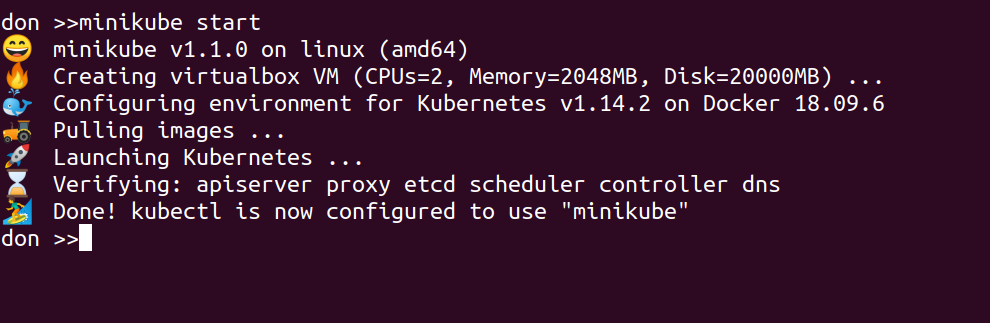
With the above initial setup done, it’s as simple as running this in a shell:

minikube start

Note you could optionally give this Cluster a name, if you are likely to have more than one for different branches of development for example. This is also where you could specify the VM provider if you want to use something other than VirtualBox – there are more details here:

https://kubernetes.io/docs/setup/learning-environment/minikube/#starting-a-cluster

This should produce output like the following, and it may well take a few minutes as the VM is downloaded and started, then a stack of Docker images are started up inside that….

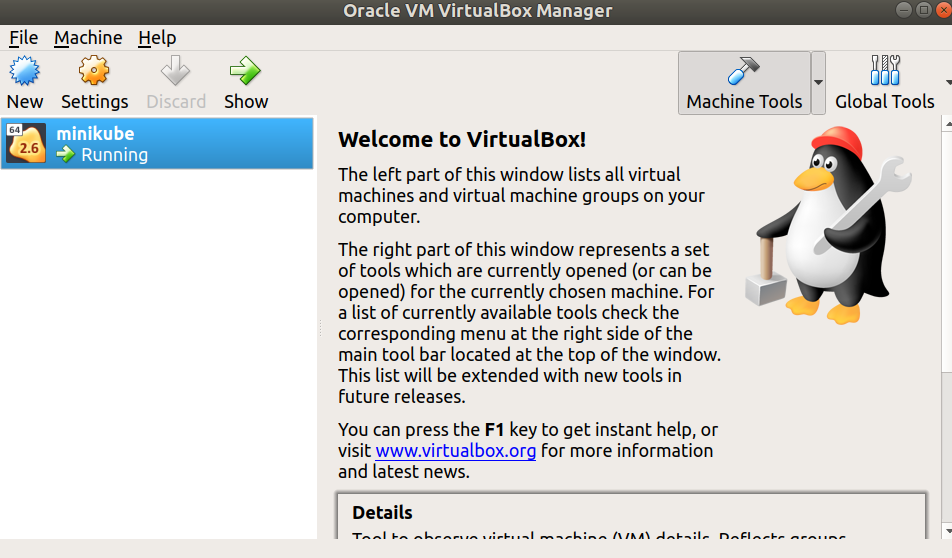
At this point you should be able to see the minikube VM running in the VirtualBox GUI:

Now it’s running, we can connect from our local shell directly to the one inside the running VM by simply issuing:

minikube ssh

This will put you inside the VM where the Kubernetes Cluster is being run, and we can see and interact with the running components, for example:

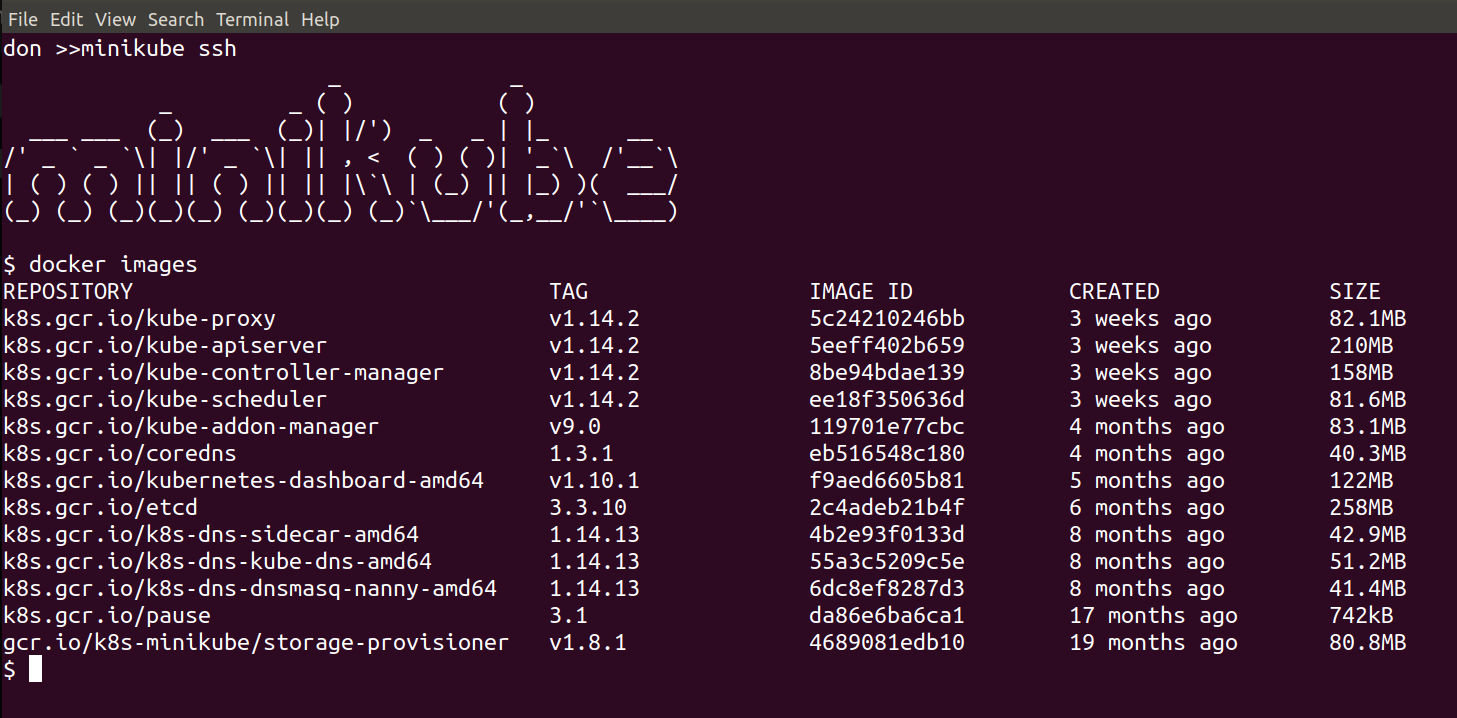
docker images

should show all of the downloaded images:

and you could do this to see the running containers:

docker ps

Quitting out of the VM puts us back on the local host, where we can use kubectl to query the status of the Minikube cluster – the initial setup has told kubectl about the Minikube-managed Kubernetes Cluster, meaning there’s no other setup required here:

kubectl cluster-info

kubectl get nodes

kubectl describe nodes

minikube addons – what they are and how they can help you

Show some of the ways minkube makes things easier for local dev

First, take a moment to look around these two local folders:

ls -al ~/.minikube; ls -al ~/.kube

These are where Minikube keeps its settings and the VM Image, and where kubectl settings are persisted – and updated by Minikube.

With Minikube you’ve often got the option to either use kubectl directly, or to use some Minikube built-in features to make your life easier.

Addons are one of these features, allowing you to very easily add – or remove – functionality from the cluster like this:

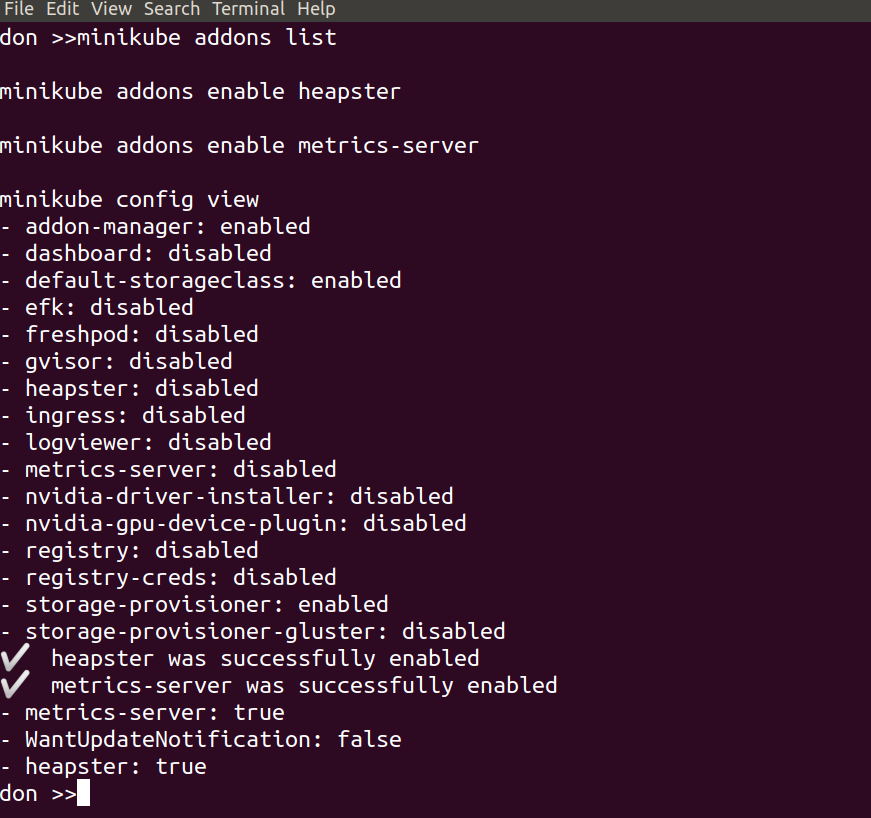
minikube addons list

minikube addons enable heapster

minikube addons enable metrics-server

With those three lines we’ve taken a look at the available addons and their current status, and selected to enable both heapster and the metrics server. This was done to give us cpu and mem stats in the Kubernetes Dashboard, which we will set up in a moment. The output should look something like this:

minikube config view

shows the current state of the config – i.e. what changes have been made, so we can keep a track of them easily.

kubectl --namespace kube-system get pods

now we can enable the dashboard:

minikube addons enable dashboard

and check again to see the current state

minikube addons list

we’ll connect to the Dashboard and take a look around in a moment, but first…

minikube docker env – using the DOCKER_HOST in you minikube VM – how & why


Minikube docker-env – setup local docker client to use minikube docker host

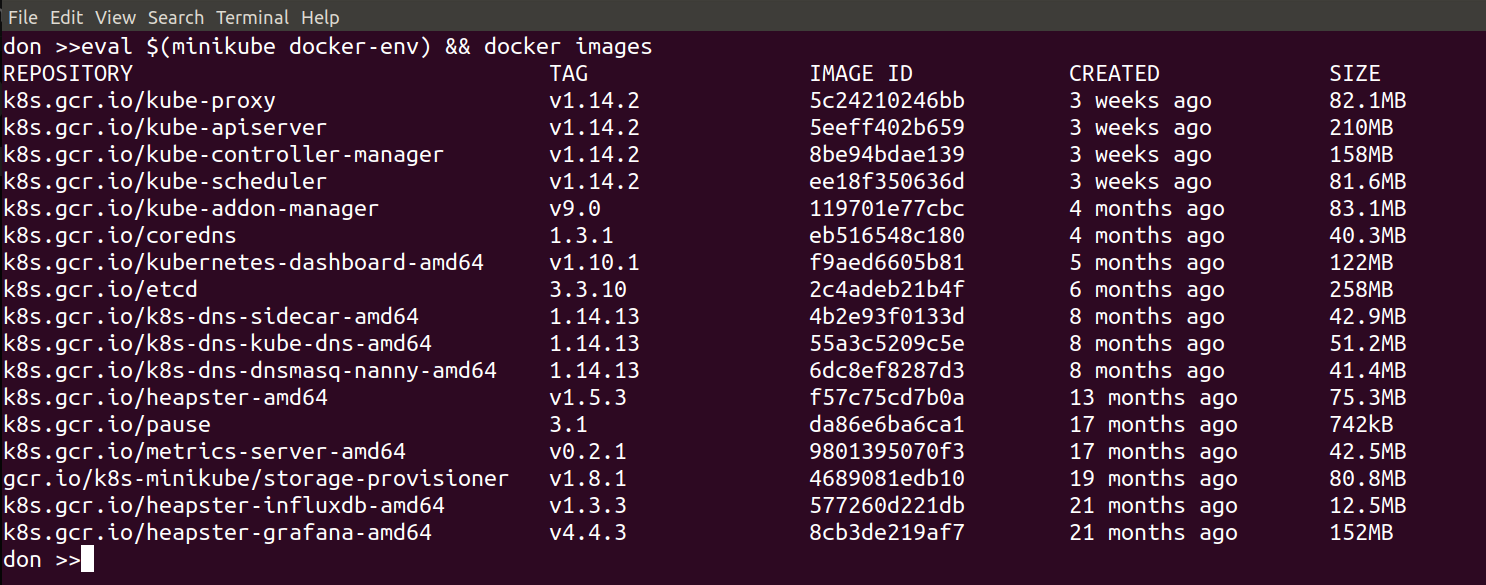
We’re going to look at connecting our local docker client to the docker host inside the Minikube VM. This is made easy by:

minikube docker-env

if you run that command on its own it wiull show you what settings it will export and you can set them by doing:

eval ${minikube docker-env}

From then on, in that shell, your local docker commands will use the docker host inside Minikube.

This is very useful for debugging and local development – when you change and deploy anything to your Kubernetes Cluster, you can easily tail the logs or check for errors or issues. You can also do all of this via the dashboard or kubectl too if you prefer, but it’s another handy and powerful feature from Minikube.

The following image shows the result of running this command:

eval $(minikube docker-env) && docker ps | grep -i metrics

so we can now use our local docker client to run docker commands like…

docker ps

docker ps | grep -i metrics

docker logs -f <some container id>

etc.

Kubernetes dashboard with Heapster and Metrics Server – made easy by Minikube

Minikube k8s dashboard – here we will start up the k8s dashboard and take look around.

We’ve delayed starting the dashboard up until after we enabled the metrics-server & heapster components we deployed earlier. By doing it in this order, the dashboard will automatically detect and use these components, giving us cpu & mem stats and a nicer looking dash, with no additional config required.

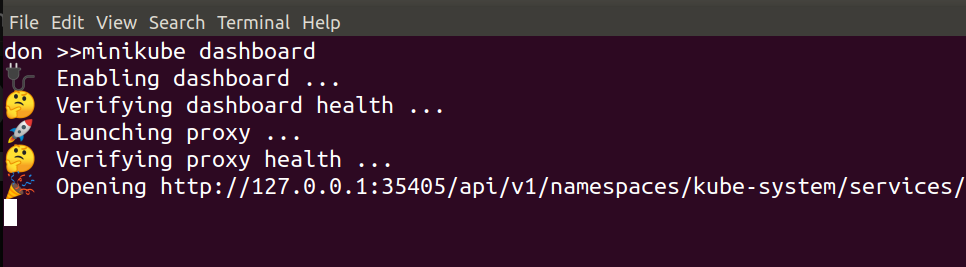
Starting the dashboard simply involved running

minikube dashboard

and waiting for a minute…

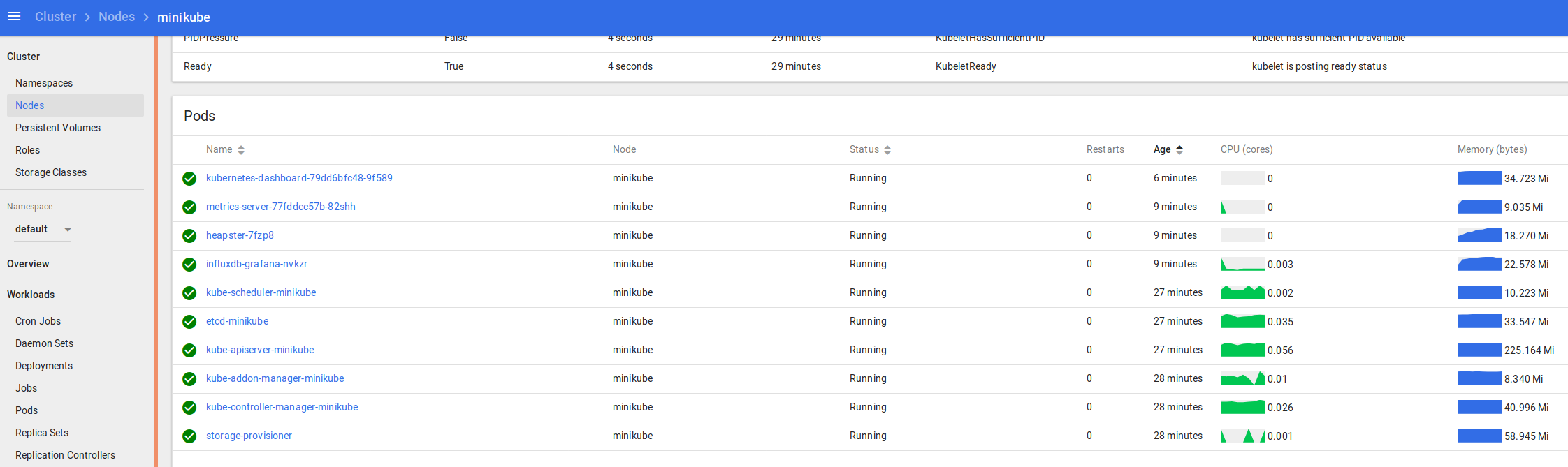
That should fire up your browser automatically, then you can take a look around at things like Default namespace > Nodes

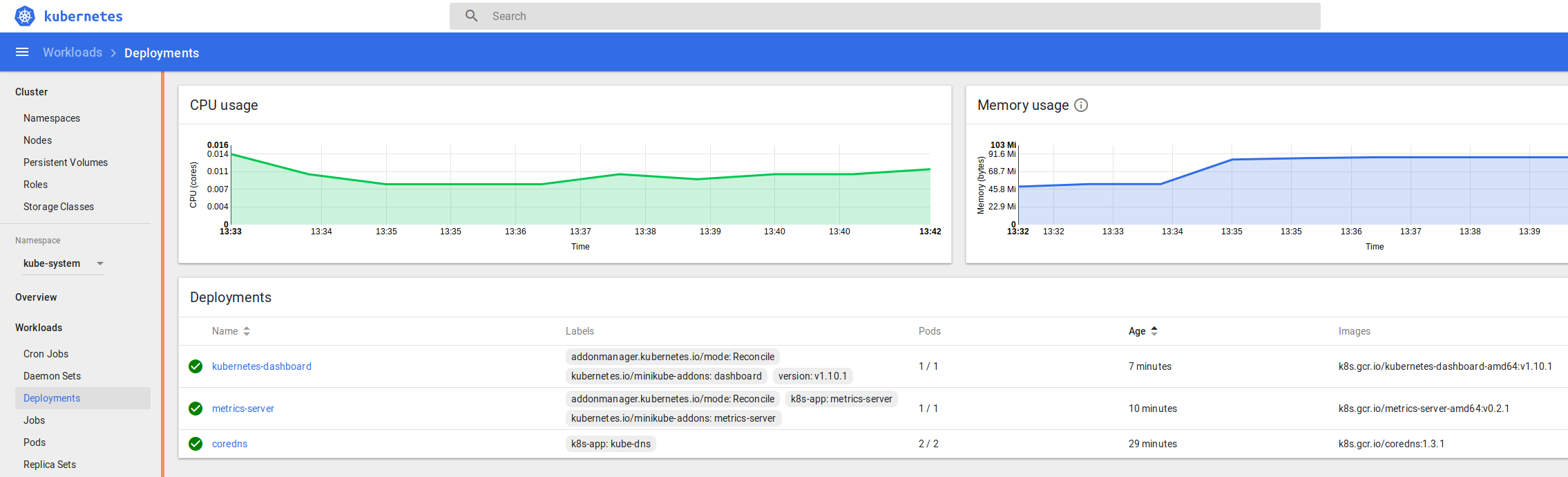
and in the namespace kube-system > Deployments

and kube-system > Pods

You can see the logs and statuses of everything running in your k8s cluster – from the core components we covered at the start, to the dashboard, metrics and heapster we enabled recently, and the application we’re going to deploy and scale up soon.

kubectl – some examples and alternatives

# kubectl command line – look at kubectl and keep an eye on things
kubectl get deployment -n kube-system

kubectl get pods -o wide -n kube-system

kubectl get services

kubectl

example app – “hello (Kubernetes) world” minikube style with NGINX, scaling your world

Now we’ll deploy the most basic application we can – a “Hello World” style NGINX docker image.

It’s as simple as this, where nginx is the name of the docker image you want to deploy, hello-nginx is the label you want to give it, and port 80 is where you want it to listen:

kubectl run hello-nginx --image=nginx --port=80

that shouldn’t take long, and you can watch the progress like this:

kubectl get pods -o wide

We can then expose the deployment using NodePort:

kubectl expose deployment hello-nginx --type=NodePort

then we can ask Minikube to provide the URL for Ingress:

minikube service --url=true hello-nginx

and hitting that URL in your browser should show the obvious:

“Welcome to nginx!

If you see this page, the nginx web server is successfully installed and working. Further configuration is required.”

you can keep an eye on the Service with

kubectl get svc

while we scale to x3 replicas:

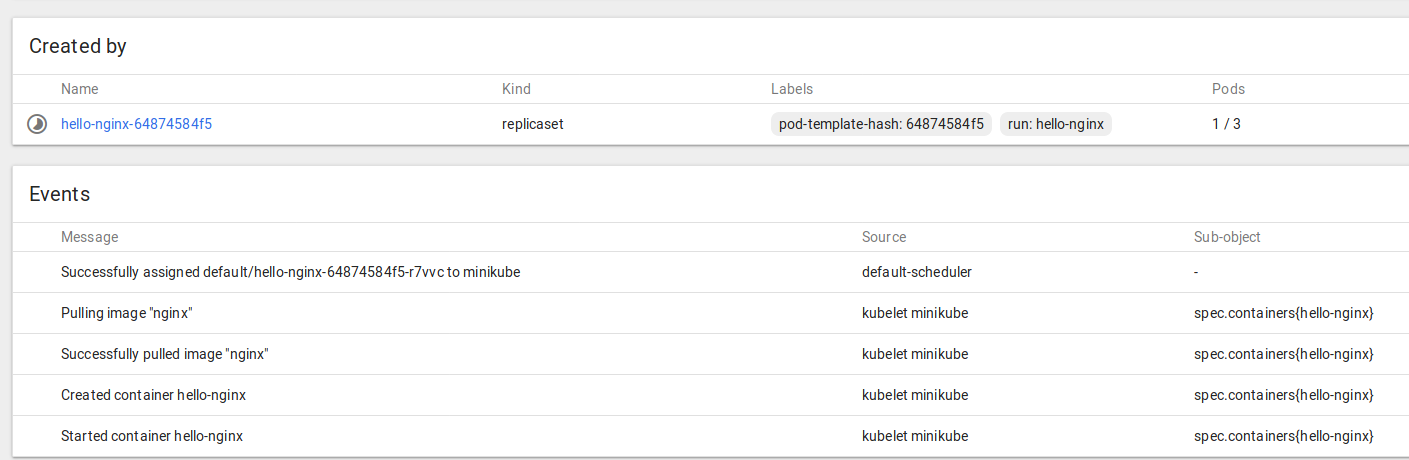
kubectl scale --replicas=3 deployment/hello-nginx

and take a look at what happens with

kubectl get deployment

kubectl get pods -o wide

or check in the Dashboard to see something like this:

and monitor what’s going on in our “hello world” NGINX app with kubectl then scale it down to 0 or 1 or whatever you like…

kubectl get deployment

kubectl get pods -o wide

kubectl scale --replicas=0 deployment/hello-nginx

Next post – Helm & Tiller onwards…

Meetup – Kubernetes with Minikube and Helm Charts

We are presenting a Kubernetes-related Meetup on Wednesday 5th June in Edinburgh.

This time we explore setting up a local development environment for Kubernetes using Minikube and Helm Charts. We will deploy NGINX to the Cluster and scaled it up and down, then use Helm Charts to deploy Jenkins, WordPress and MariaDB.

if you’d like to join in please book a space via our Meetup (below) – it’s free, and the Peoples Postcode Lottery are kindly hosting the event and providing the beer and pizza too! Wednesday 5th June 2019 from 6:30 PM in the Peoples Postcode Lottery offices at 28 Charlotte Square in Edinburgh.

Kubernetes – getting started with Minikube, Helm and Tiller

Wednesday, Jun 5, 2019, 6:30 PM

Wemyss House
28 Charlotte Square Edinburgh, GB

38 Members Went

In collaboration with Hays and the People’s Postcode Lottery, Automated IT Solutions are running a Meetup on Kubernetes with Minikube, Helm and Tiller. The session starts off with an overview of the main Kubernetes concepts and components, then runs through building your own local Kubernetes Cluster with Minikube. After deploying and scaling our fi…

Check out this Meetup →


I have been planning this session for ages, and hope that it will become the basis for several future talks and ideas, including deploying Blockchain to a Kubernetes cluster, then adding a Ruby and Sinatra based application that will use it.

Extending Jenkins book

My new book, Extending Jenkins by Donald Simpson, has been published!

Extending Jenkins

There is a free sample chapter available here:
Chapter 8 – Testing and Debugging Jenkins Plugins

You can buy the full book in either electronic or paperback format direct from the publishers or through Amazon here in the UK or Amazon in the US

About This Book

  • Find out how to interact with Jenkins from within Eclipse, NetBeans, and IntelliJ IDEA
  • Develop custom solutions that act upon Jenkins information in real time
  • A step-by-step, practical guide to help you learn about extension points in existing plugins and how to build your own plugin

Who This Book Is For

This book is aimed primarily at developers and administrators who are interested in taking their interaction and usage of Jenkins to the next level.

The book assumes you have a working knowledge of Jenkins and programming in general, and an interest in learning about the different approaches to customizing and extending Jenkins so it fits your requirements and your environment perfectly.

Table of Contents

1: Preparatory Steps
2: Automating the Jenkins UI
3: Jenkins and the IDE
4: The API and the CLI
5: Extension Points
6: Developing Your Own Jenkins Plugin
7: Extending Jenkins Plugins
8: Testing and Debugging Jenkins Plugins
9: Putting Things Together

What You Will Learn

  • Retrieve and act upon Jenkins information in real time
  • Find out how to interact with Jenkins through a variety of IDEs
  • Develop your own Form and Input validation and customization
  • Explore how Extension points work, and develop your own Jenkins plugin
  • See how to use the Jenkins API and command-line interface
  • Get to know how to remotely update your Jenkins configuration
  • Design and develop your own Information Radiator
  • Discover how Jenkins customization can help improve quality and reduce costs

In Detail

Jenkins CI is the leading open source continuous integration server. It is written in Java and has a wealth of plugins to support the building and testing of virtually any project. Jenkins supports multiple Software Configuration Management tools such as Git, Subversion, and Mercurial.

This book explores and explains the many extension points and customizations that Jenkins offers its users, and teaches you how to develop your own Jenkins extensions and plugins.

First, you will learn how to adapt Jenkins and leverage its abilities to empower DevOps, Continuous Integration, Continuous Deployment, and Agile projects. Next, you will find out how to reduce the cost of modern software development, increase the quality of deliveries, and thereby reduce the time to market. We will also teach you how to create your own custom plugins using Extension points.

Finally, we will show you how to combine everything you learned over the course of the book into one real-world scenario.

Beginning Docker video course

Blog updates have been scarce recently as I have been busy working on a couple of publications… the first of which has just been released…

https://www.linuxjournal.com/node/1338951

This is a hands-on video course packed with practical examples to get you started with Docker.

Here is the course overview video:

And here is a free sample video from Section 2, “Docker Basics” where we take a look at running containers and the 3 different types of “containerized” commands:

and this final sample video is taken from Section 5 – “Running a Web Application with Docker“.

In this clip we build our own web application using Python, pip and Redis, which we will then “dockerize” and ship to “production”:

About This Video

  • Master Docker commands by creating and publishing a sample web application
  • Build and manage your own custom Docker Containers to set up data sources, filesystems, and networking
  • Build your own personal Heroku PaaS with Dokku

Who This Video Is For

If you’re a developer who wants to learn about Docker, a powerful tool to manage your applications effectively on various platforms, this course is perfect for you! It assumes basic knowledge of Linux but supplies everything you need to know to get your own Docker environment up and running.

What You Will Learn

  • Build new Docker containers and find and manage existing ones
  • Use the Docker Index, and create your own private one by using containers
  • Discover ways to automate Docker, and harness the power of containers!
  • Build your own Docker powered mini-Heroku Paas with Dokku
  • Set up Docker on your environment based on your application’s custom requirements
  • Master Docker patterns and enhancements using the Ambassador and Minimal containers

In Detail

One of the major challenges while creating an application is adapting your application to run smoothly on all of the plethora of operating systems available. Docker is an extremely efficient technology that allows you to wrap all your code along with its supporting files into a single bundle; it also guarantees that your application will behave in the same way on any host powered by Docker. You can also easily reuse existing Docker containers or create and publish your own. Unlike Virtual Machines, Docker containers are lightweight and more efficient.

Beginning Docker starts with the fundamentals of Docker—explaining how it works, how to set it up, and how to get started on leveraging the benefits of this technology. The course goes on to cover more advanced features and shows you how to create and share your own Docker images.

You will learn how to install Docker on your own machine, then how to manage it effectively, and then progress to creating and publishing your very own application. You will then learn a bit more about Docker Containers; built-in features and commands such as volumes, mounts, ports, and linking and constraining containers; before diving into running a web application.

Docker has functionality such as the Docker web API to handle complex automation processes which will be explained in detail. You will also learn how to use the Docker Hub to fetch and share containers, before running through the creation of your own Docker powered mini-Heroku

Beginning Docker covers everything required to get you up and running with Docker, with detailed real-world examples and helpful tips to make sure you get the most from it.

Style and Approach

An easy-to-follow and structured video tutorial with practical examples of Docker to help you get to grips with each and every aspect.

The course will take you on a journey from the basics to the advanced application of Docker containers, and includes several real-world scenarios to learn from.

Cheers,

Don